Use Credits to help offset outstanding balances or to provide incentives to your customers for future transactions. Credits are not refunds, but will act as a balance on an Account, and will be used before any linked credit cards.
When To Issue
There are multiple instances when issuing a Credit makes sense.
In lieu of a Refund
When a customer makes a transaction that they wish to get their money back for, you can offer to issue a Credit. This is beneficial for three reasons.
There is no cost for a Credit in Captyn. Refunds cost money because you will be giving the customers money back, and also you will be paying Stripe a fee to process the refund. We know that there are times where a refund is necessary, but always consider if you can use a Credit instead of issuing the refund.
Reporting is much cleaner when Credits are issued instead of Refunds. It is far easier to balance your books when refunds are not in play.
A customer with a credit on their account has incentive to come back and use that credit with you for a future offering, which can help to further their patronage and your relationship.
To zero out an Outstanding Balance
You may have some Accounts that have outstanding balances on their profile. This can be due to a handful of reasons, but most commonly due to an invoice that was generated for the customer before they had a credit card connected. When this happens, you may not wish to charge them the "past due" amount in addition to any new charges, so you would want to credit their account to $0 before the new invoice is issued. Here is how you would do this:
Offsetting a past credit balance when bringing your customers onto Captyn
Any other time you want your customer(s) to have a dollar value amount on their Account from which to draw
How To Issue
To issue a Credit, you will want to begin on the Account profile. You can begin from a Participant profile and navigate to the Account. This process shows how to issue a One-time credit.
You can also set up your Credits to be Recurring. This is a good option if you have someone who is in an offering that is billed monthly. To do this, head to an Account profile and choose the option to set up a Recurring Credit.
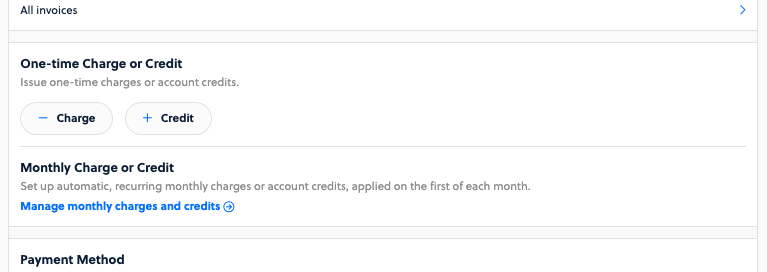
To begin, select "Monthly Credit".
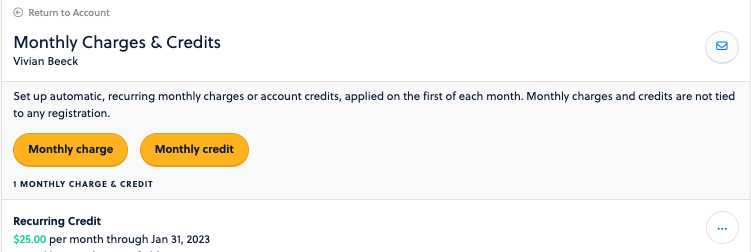
Fill in the fields in the window that appears. You will set a Final Date for the credit.
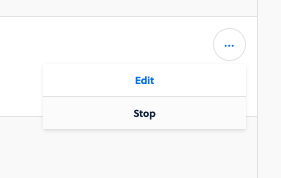
You can manage this credit by selecting on the ellipse next to the credit. You can choose either Edit the recurring credit, which pulls up the same setup window, or you can choose to Stop a credit before its Final Date if necessary.
You can edit a credit easily and deduct from the original balance if you credited too much to begin with. If you need to add to the credit amount, instead, issue a new credit for the difference. To edit a credit, find it in the list of Invoices from the customer account profile.
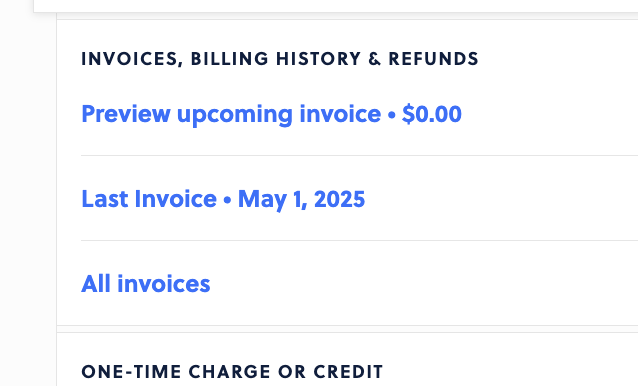
Locate an issued credit, and click the blue date to access the edit page.

At the top of the page, you will see options to Edit or Delete the Credit
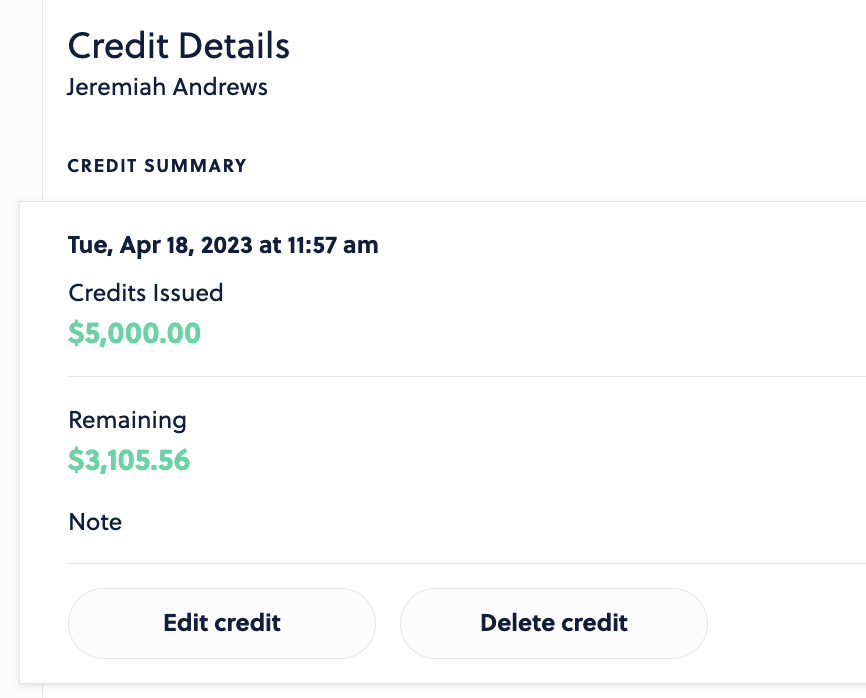
If you choose to Edit the credit, you can change the amount remaining on the credit. You can only deprecate this amount.
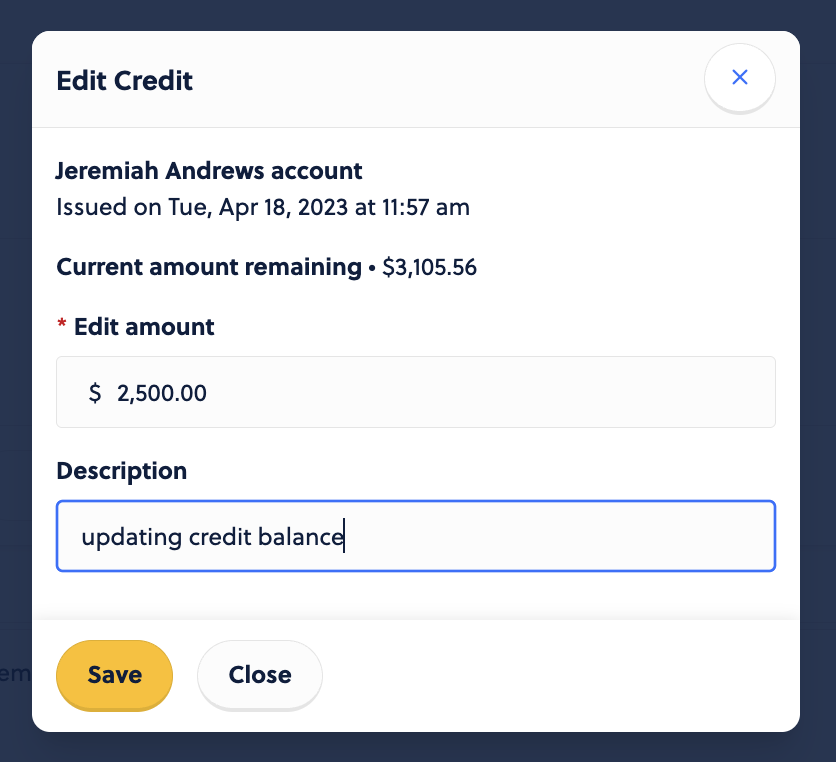
You will see a new note about this in the History and Usage section below the top portion.

You can review all History and Usage details of this credit at the bottom of the page. See how and when it was used towards the balance, broken down by each individual invoice it was a part of.
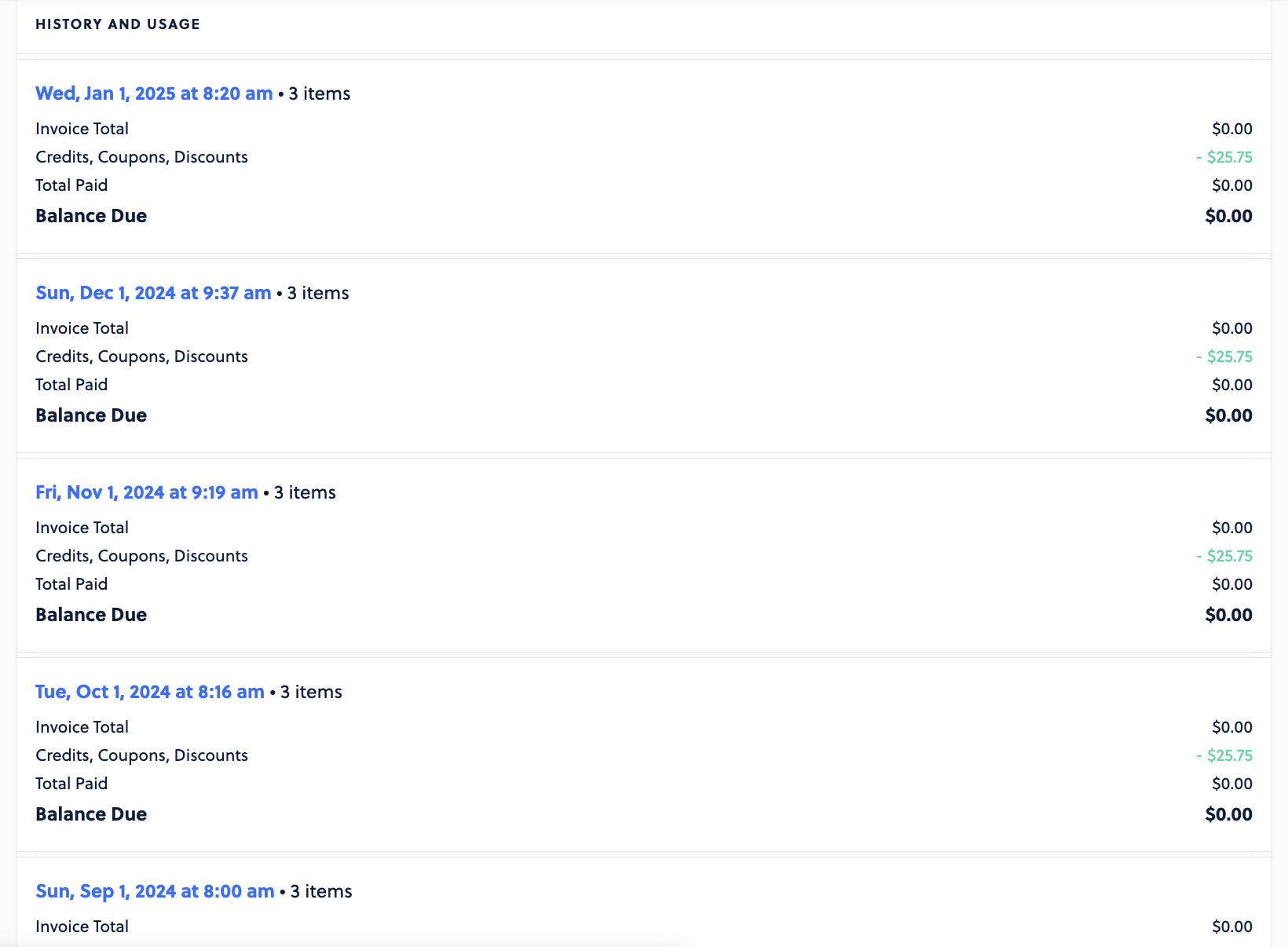
If you wish to Delete the credit, you can do so from the top portion of the screen.
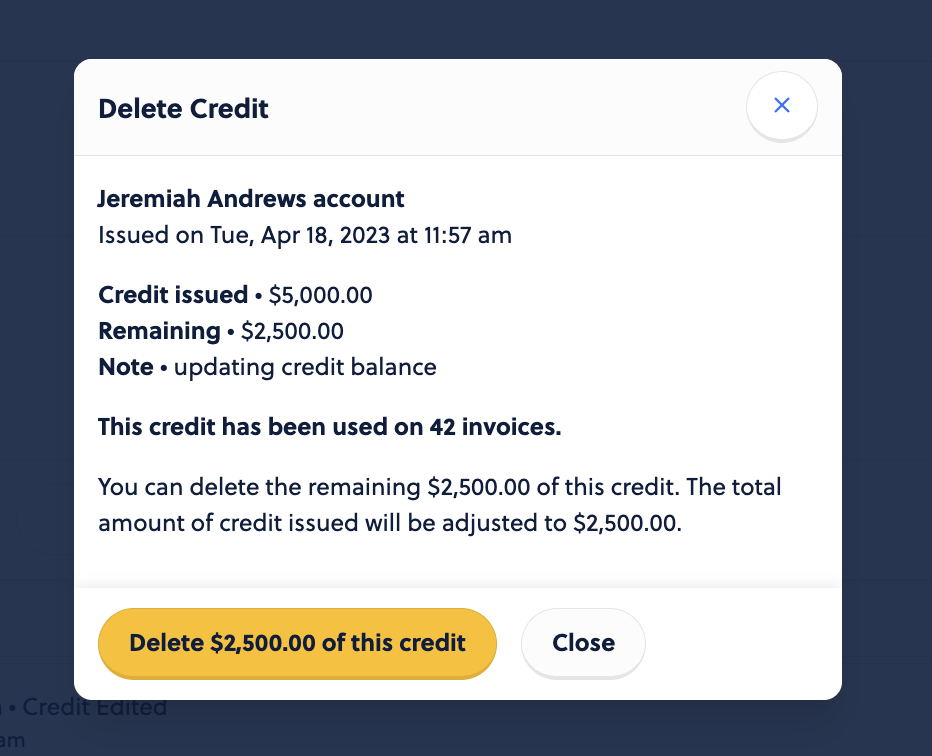
If you choose to Delete the credit, you will be deleting the entire balance of the credit that remains. You will see a breakdown of this action as well as its historical usage. If you wish to change the credit amount, you can go back and follow the steps above to Edit it.