
Overview
Captyn can help you easily track the level your participants are at using Evaluations. These are helpful tools to track performance, check off abilities, and make recommendations for future enrollments.
Configuring Evaluations
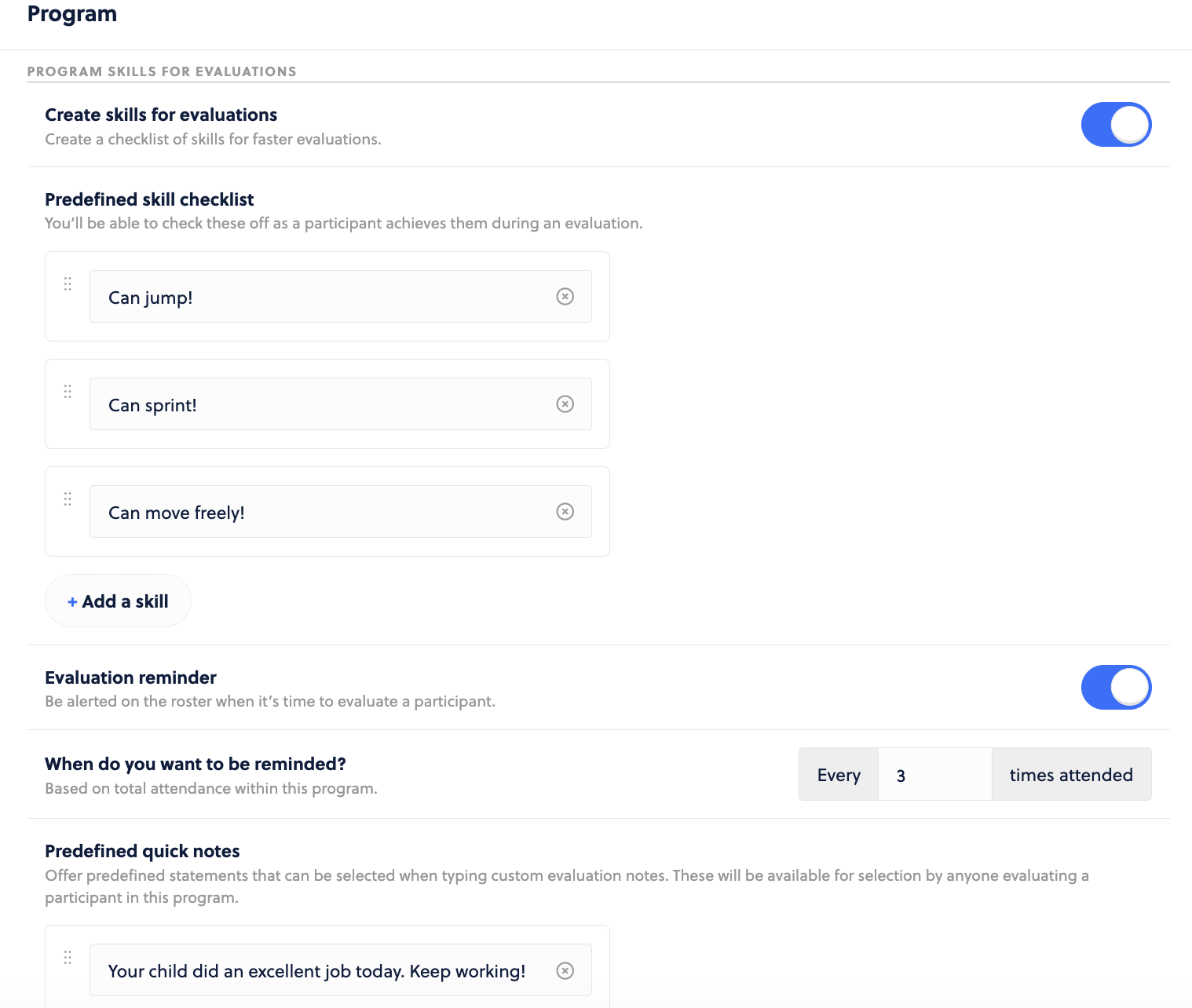
Evaluations are a function of Captyn out of the box. You can always perform them on your participants either from the Today page or from the participant’s profile. But you can also set more details up like skill checklists, evaluation reminders (to be sent to the account holder), and also quick notes for easy entry.
To do so, head to the Program you are evaluating your participants for. On the edit screen, you can configure these items.
Adding Evaluations
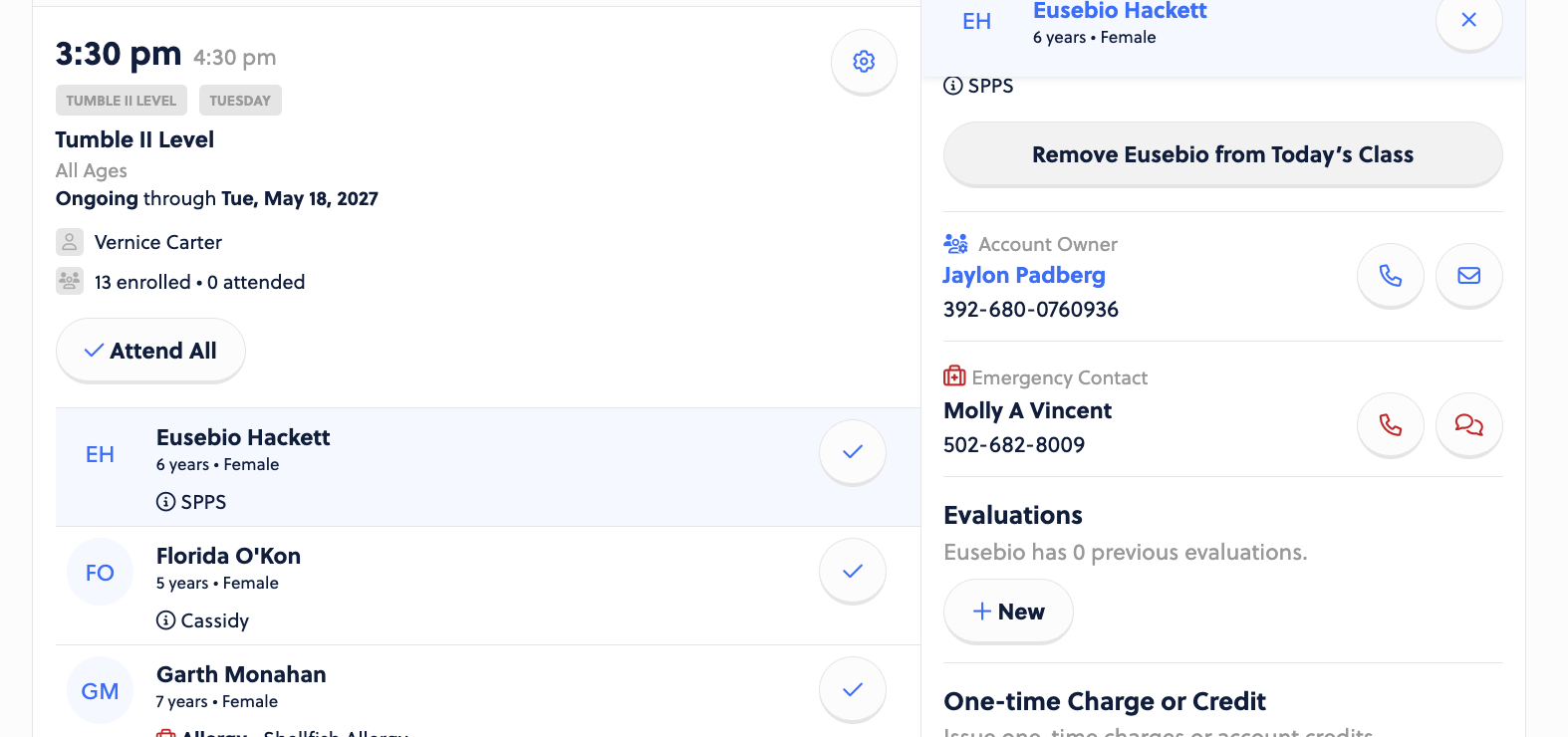
Evaluations can be added from the Today screen or the participant’s profile. To add from the Today screen, locate the instance of the class, expand the roster, and select a participant’s name. On the right side of the screen, you will see an option to click + New and add the evaluation.
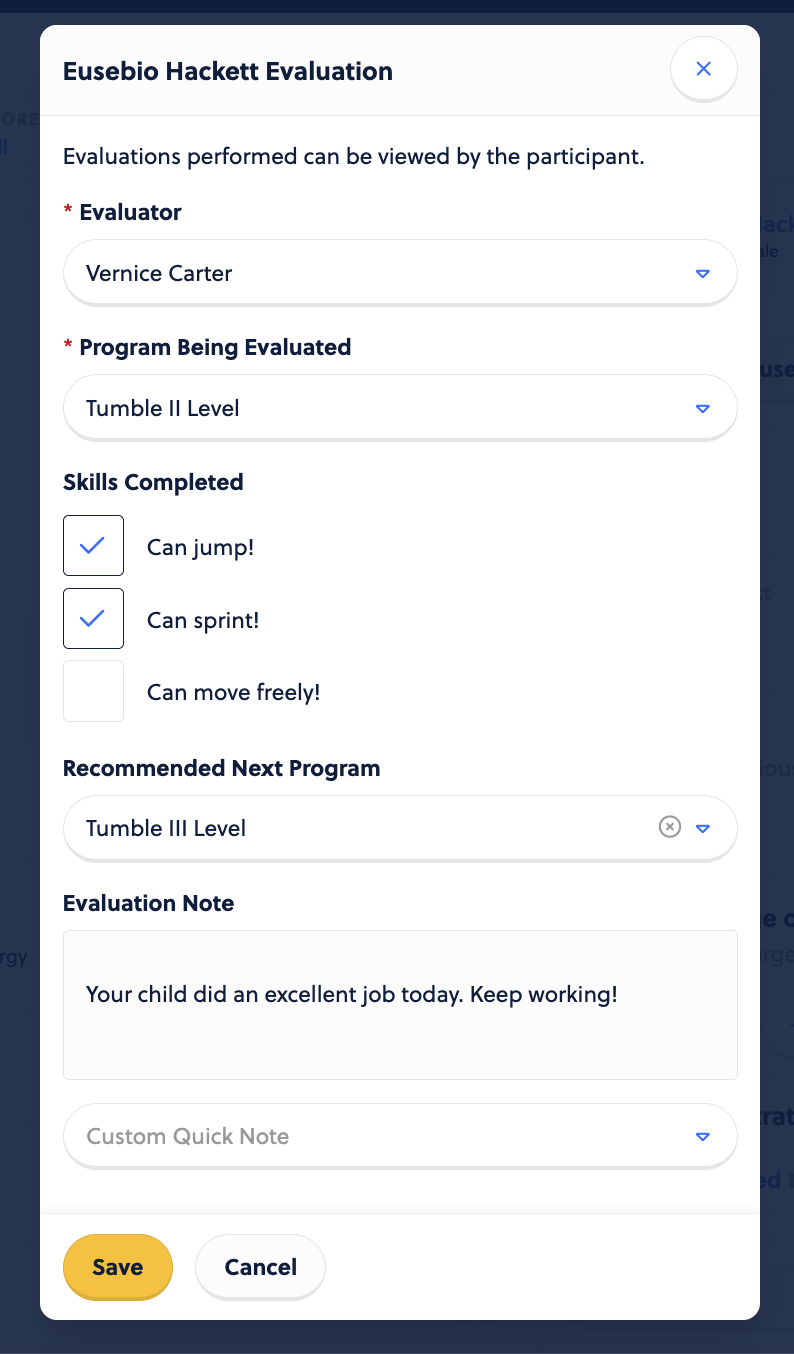
When you click the + New, a modal will appear, allowing you to complete the evaluation.
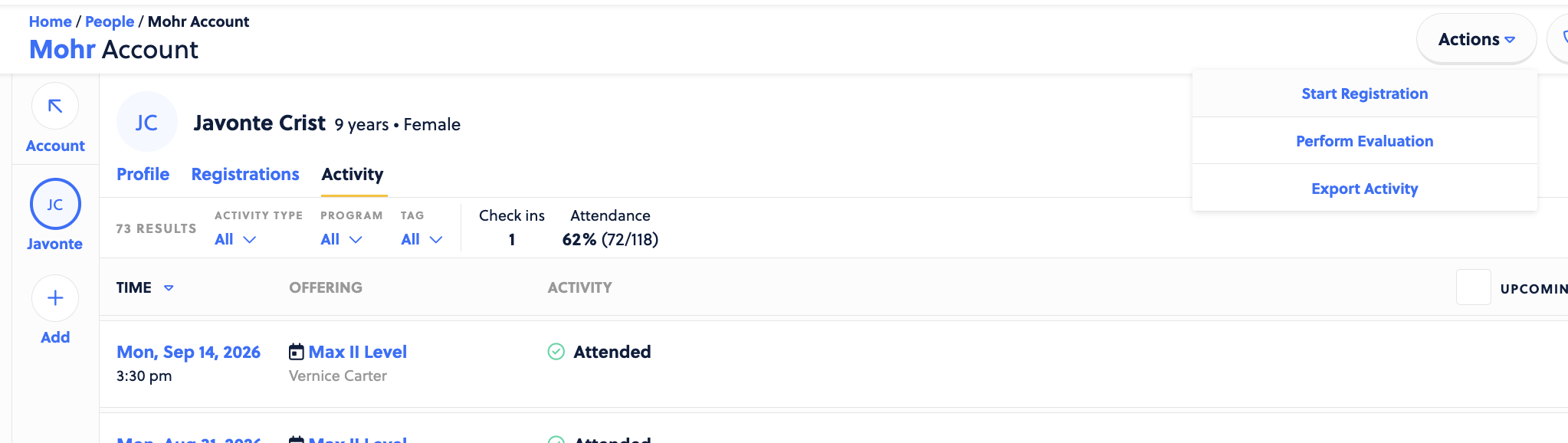
You can also add an evaluation from the participant’s profile directly. To do so, visit their profile and choose the Activity tab along the top of the page. Click Actions > Perform Evaluation and follow the same prompts.
You will always see an option to email the account holder this information as well.
Viewing Evaluations
You can easily view evaluations on a profile by heading to their participant profile and clicking Activity. Use the filters to choose “Evaluations” and then you can see these details.
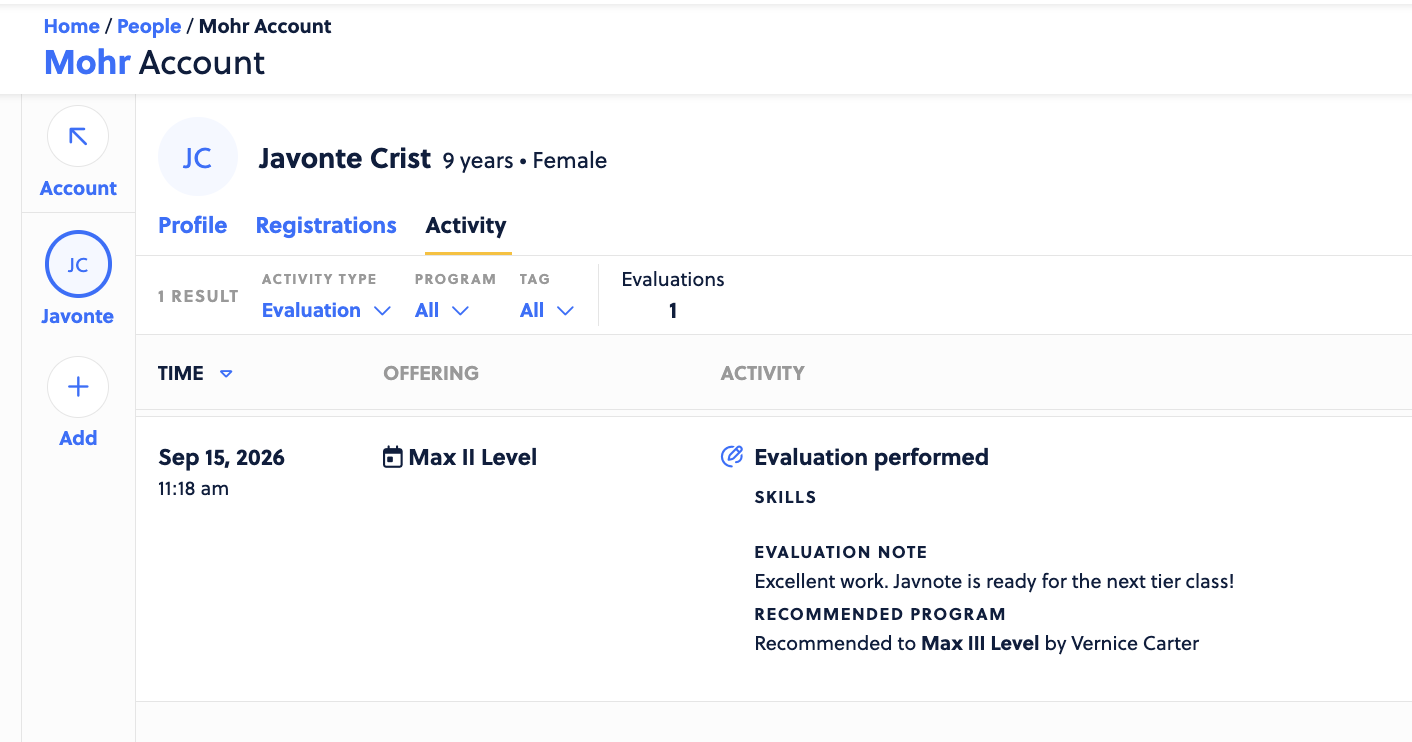
Account holders will also be able to see this on the same above view when logged into their customer account as well.