Use People page view or Memberships to bulk register your participants into new classes.
From the People Page:
Start with a filtered view. Filter by program or other filters, and start with a list. Like this one (this is a former (Archived) swim team list):

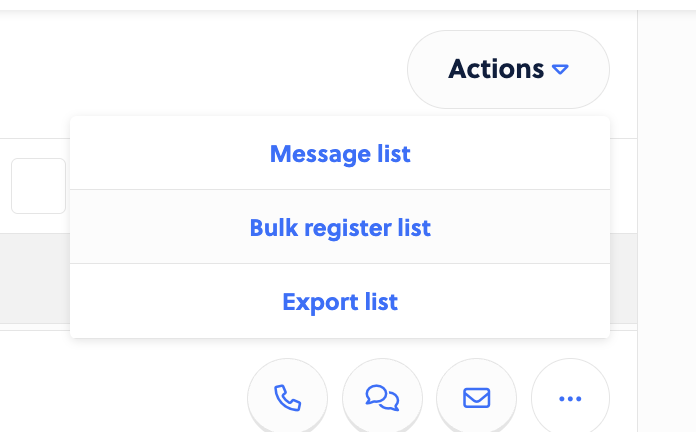
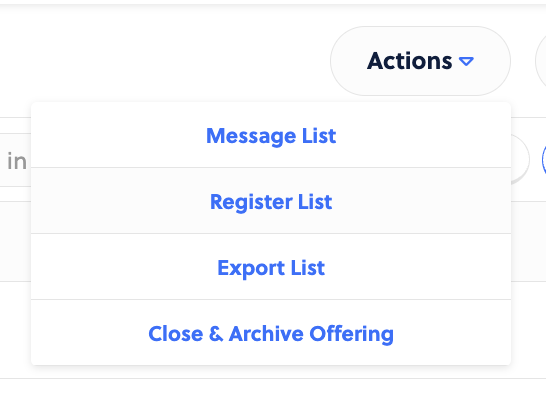
With a view set, click Actions > Bulk register list
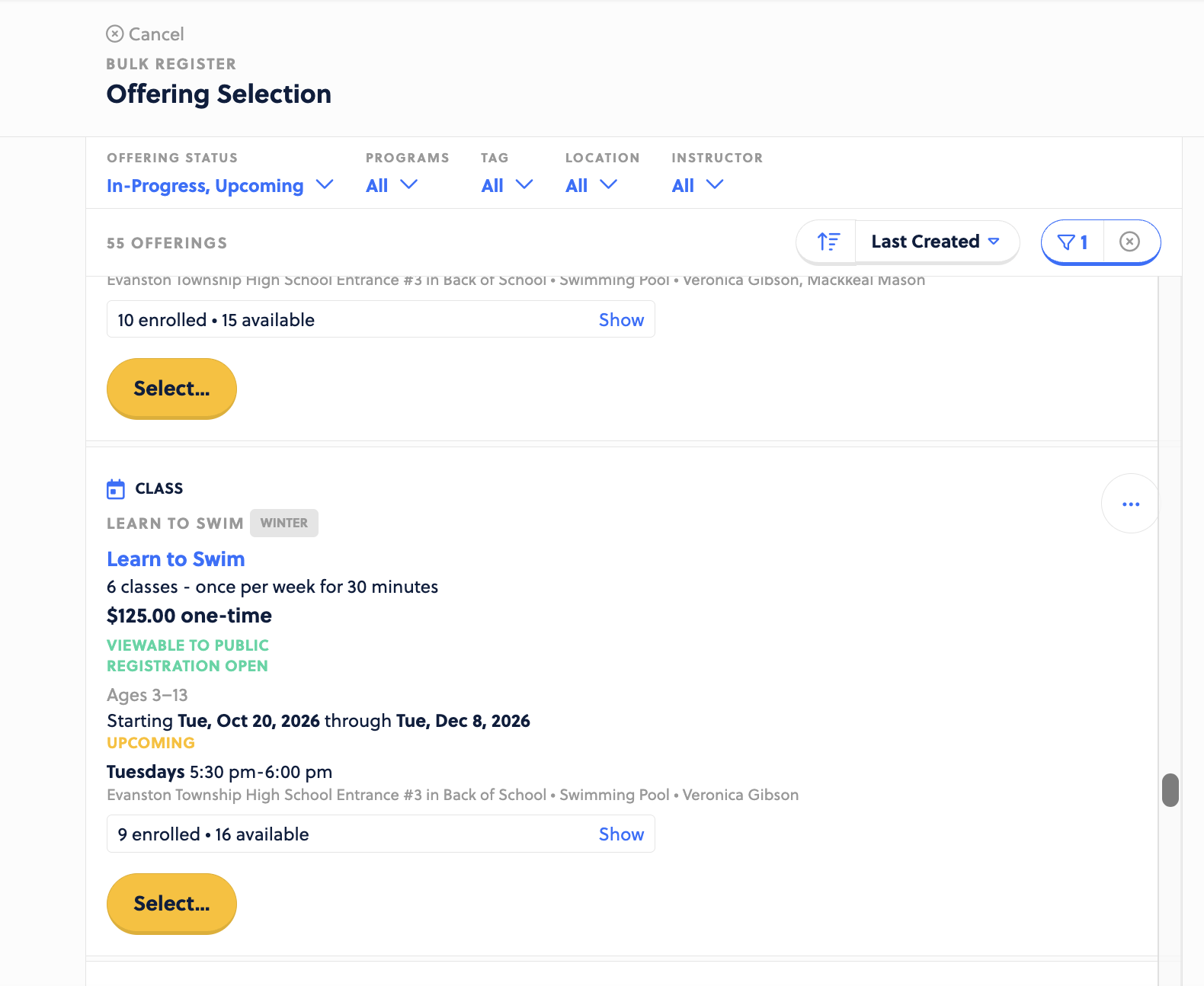
Scroll through your current offering and choose where you wish to place them.
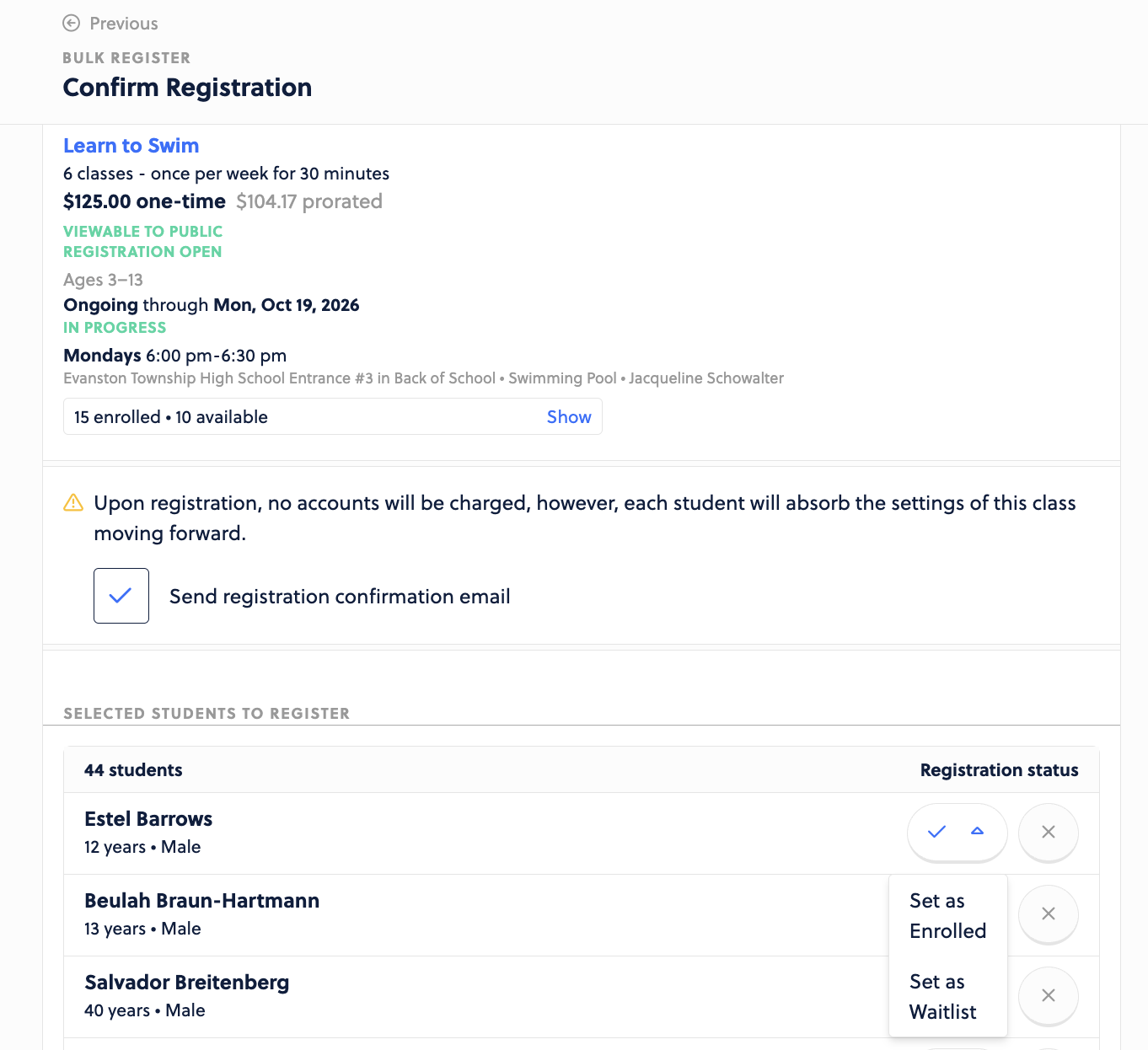
Confirm the list and add them. You can click the X to remove them or the dropdown to choose to put them on the waitlist. Default will be Enrolled.
Also be sure to send a confirmation email (or disable it if preferred).
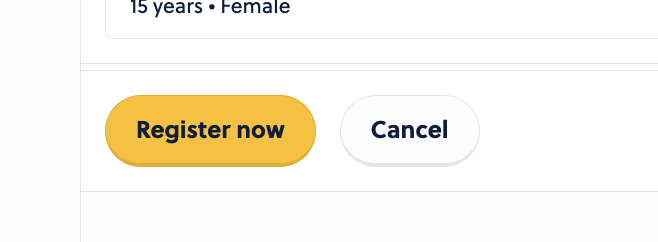
Scroll down to finalize the registration.
From the Memberships Page:
Head to your Memberships page and select the Membership you wish to bulk enroll the members. Choose Actions > Register List.
Scroll through your current offering and choose where you wish to place them.
Confirm the list and add them. You can click the X to remove them or the dropdown to choose to put them on the waitlist. Default will be Enrolled.
Also be sure to send a confirmation email (or disable it if preferred).
Scroll down to finalize the registration.
