Overview
Check in can be managed multiple ways. This article covers a route to allow you to have customers check in to say “I’m present” and then an instructor to say “you are here”. This is optimized using Captyn’s Kiosk mode.
Getting Started
When you have a class and it has Check In enabled
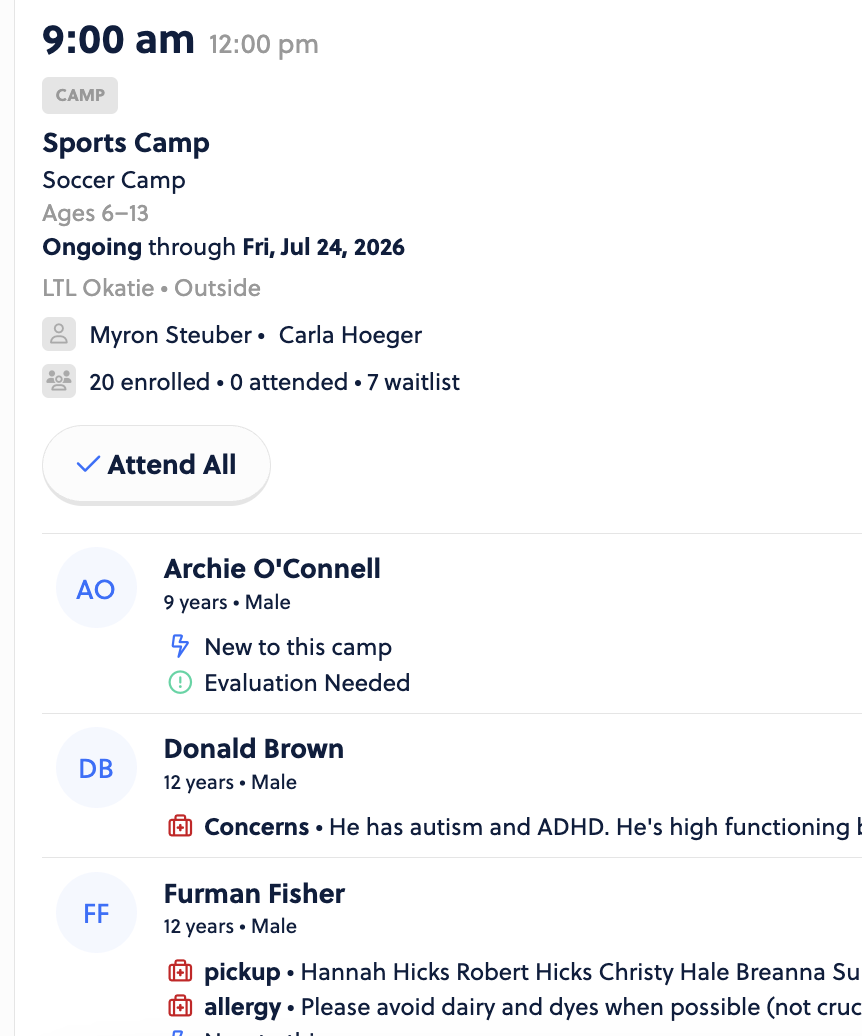
… the process is that you go to the class on the Today page, and click on it. Without check in enabled, you see the full roster, like this:
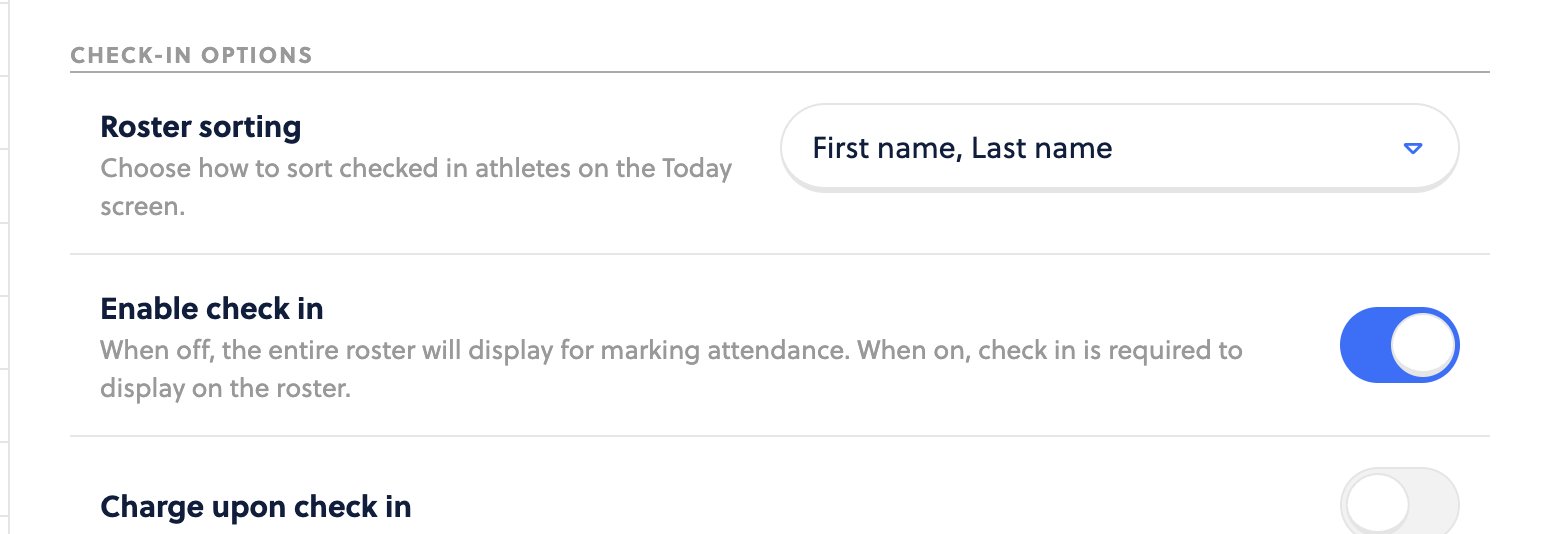
But if you enable check in on the offering in the Management tab of the offerings’ settings, it will instead look like this:
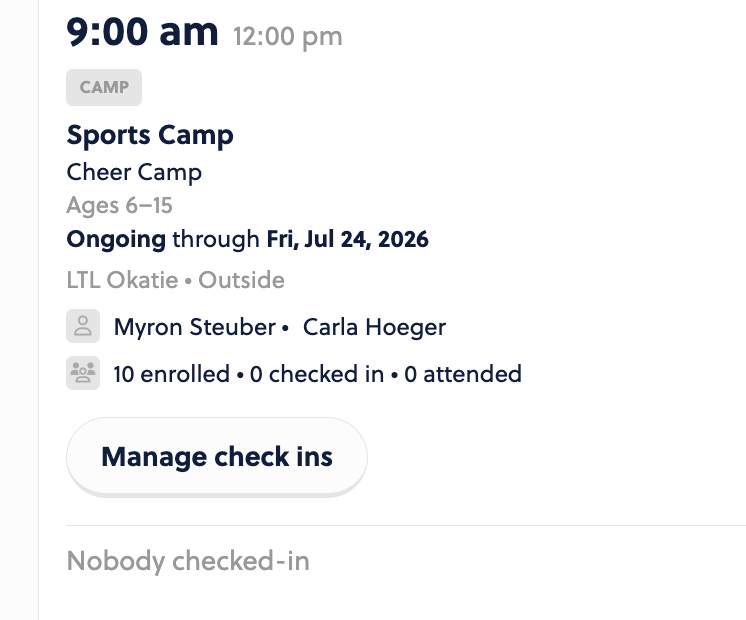
As families check in from kiosk, they will appear in the list like this.
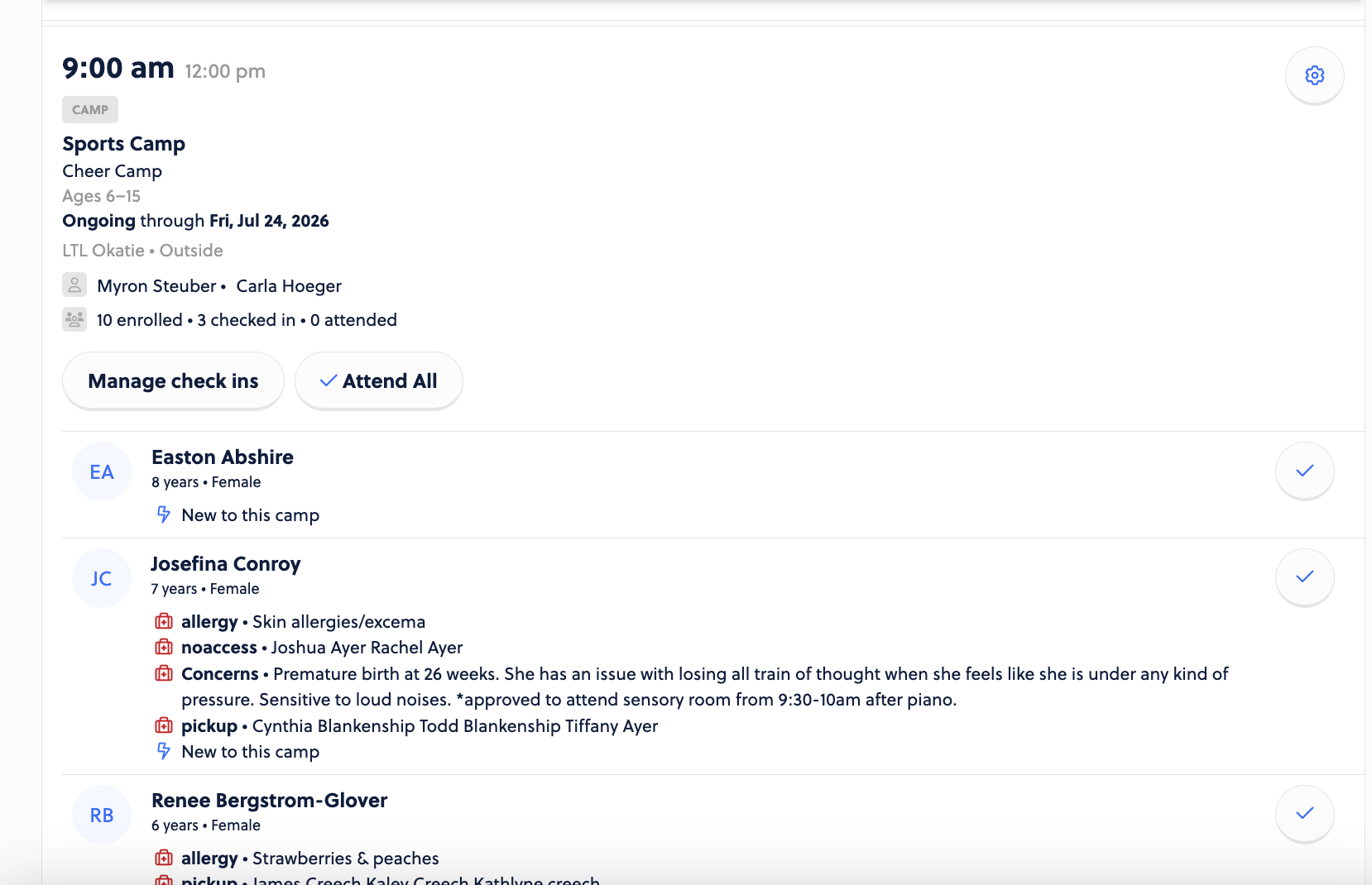
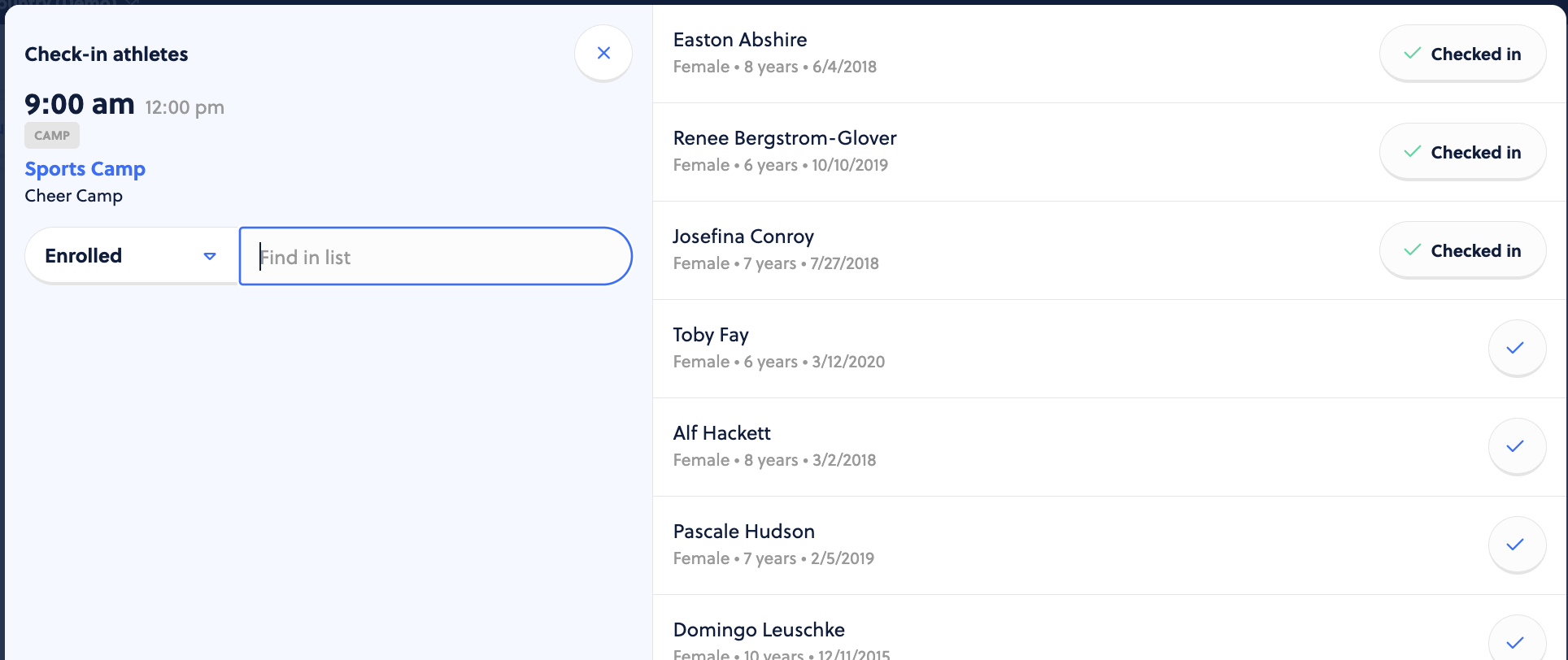
*Of Note: You can also manually check them in for this first step by clicking on Manage check ins (on the Today screen class instance), which will pull up this screen, where you can find/search for a name, and click the check mark to mark them as checked in (this is the first step).
Then, your instructors will go back to the view where they see all of those participants checked in on the class from the Today screen. The instructor can then click the check mark to the right of their name to mark the participant as attended.
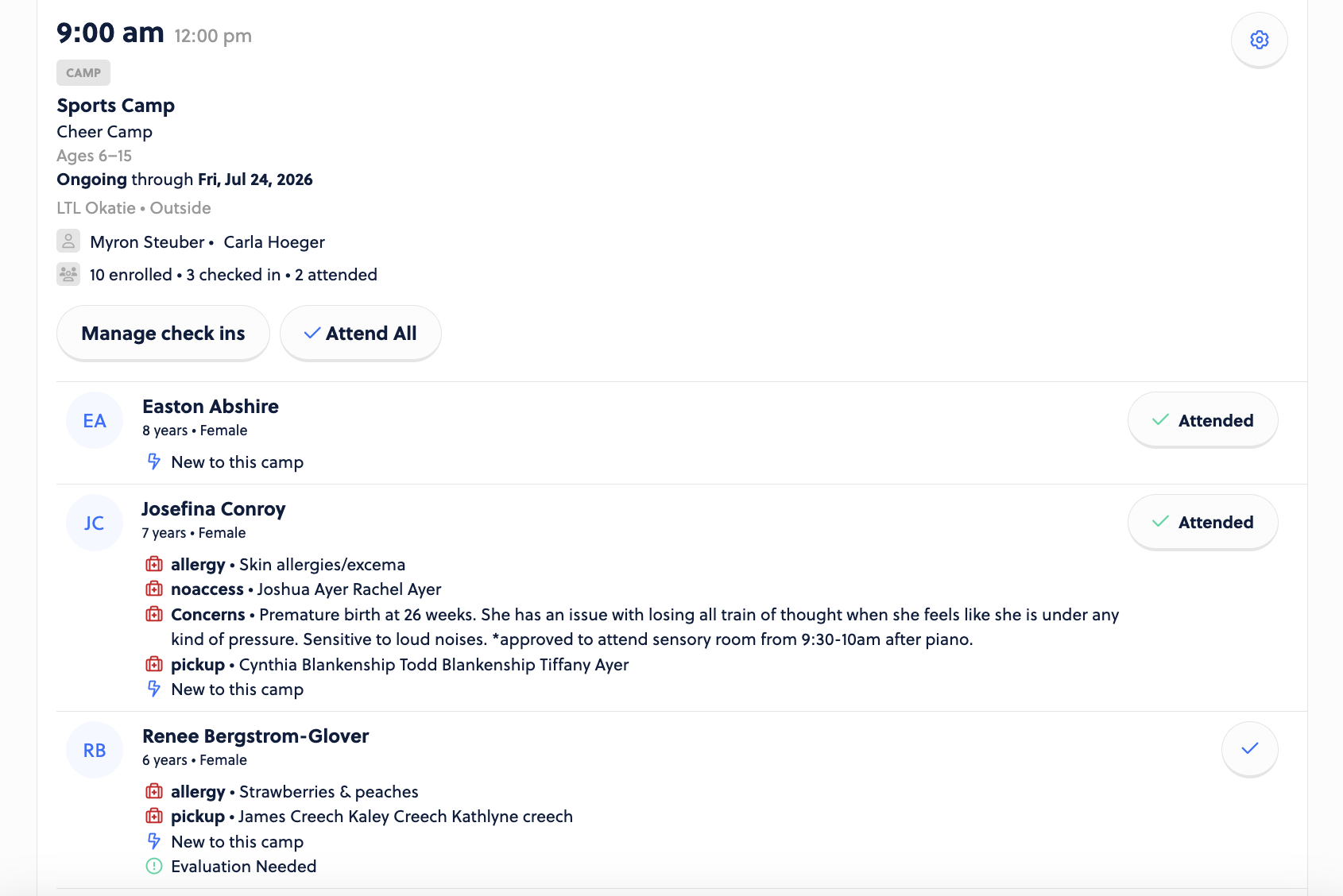
So doing it this way adds the secondary layer of allowing a customer to say “I am here” and then an instructor to say “Attended”.
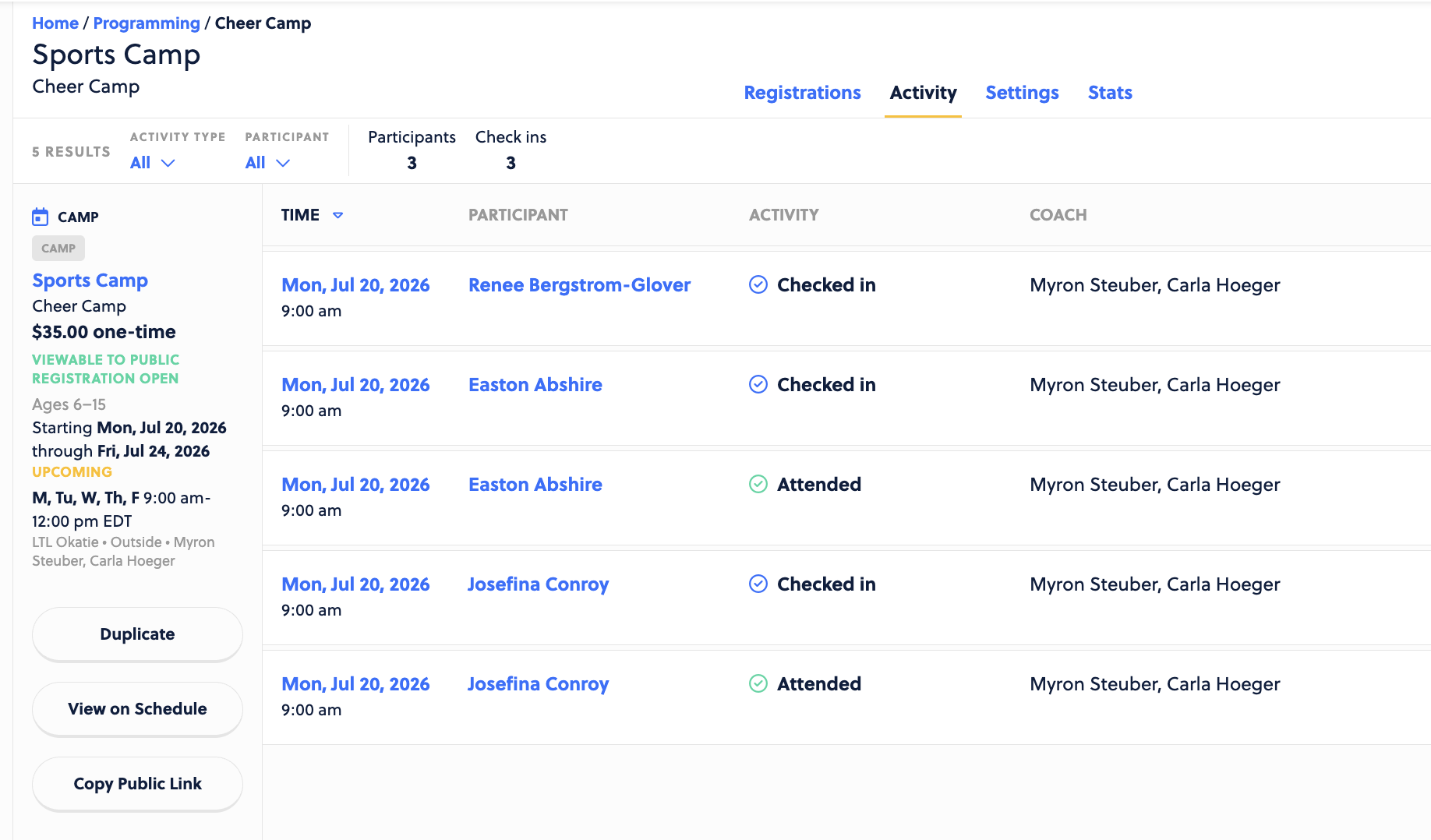
The Activity view on the offering will also tell the same story, showing those who “Checked In” (via Kiosk) and then “Attended” the class (as marked by the instructor).